6月14日

モデルとデータベース

データベースのテーブルに対応するPOJOクラスとしてMyDataを定義する。
MyDataクラスには、エンティティであることを示すために @Entity アノテーションをつける。

package jp.abc;

import javax.persistence.Column;
import javax.persistence.Entity;
import javax.persistence.GeneratedValue;
import javax.persistence.GenerationType;
import javax.persistence.Id;

@Entity
public class MyData {
	@Id
	@GeneratedValue(strategy = GenerationType.AUTO)
	@Column
	private long id;

	@Column(length = 50, nullable = false)
	private String name;

	@Column(length = 200, nullable = true)
	private String mail;

	@Column(nullable = true)
	private Integer age;

	@Column(nullable = true)
	private String memo;

	public long getId() {
		return id;
	}

	public void setId(long id) {
		this.id = id;
	}

	public String getName() {
		return name;
	}

	public void setName(String name) {
		this.name = name;
	}

	public String getMail() {
		return mail;
	}

	public void setMail(String mail) {
		this.mail = mail;
	}

	public Integer getAge() {
		return age;
	}

	public void setAge(Integer age) {
		this.age = age;
	}

	public String getMemo() {
		return memo;
	}

	public void setMemo(String memo) {
		this.memo = memo;
	}

}

MyData エンティティをデータベースに格納するためのインタフェースを定義する。
JpaRepositoryを継承して定義する。
テキストでは新たに repositories パッケージを作ってその中に作っているので、それにならう。

package jp.abc.repositories;

import org.springframework.data.jpa.repository.JpaRepository;
import org.springframework.stereotype.Repository;

import jp.abc.MyData;

@Repository
public interface MyDataRepository extends JpaRepository<MyData, Long> {

}

MyDataを扱うために、コントローラを新しく用意する。

MyDataController

package jp.abc;

import org.springframework.beans.factory.annotation.Autowired;
import org.springframework.stereotype.Controller;
import org.springframework.web.bind.annotation.RequestMapping;
import org.springframework.web.servlet.ModelAndView;

import jp.abc.repositories.MyDataRepository;

@Controller
public class MyDataController {

	@Autowired
	private MyDataRepository repository;

	@RequestMapping("/mydata")
	public ModelAndView index(ModelAndView mav) {
		mav.setViewName("mydata");
		mav.addObject("msg", "this is sample content.");
		Iterable<MyData> list = repository.findAll();
		mav.addObject("data", list);
		return mav;
	}
}

新たに mydata.html を作成する。

mydata.html

<!DOCTYPE html>
<html xmlns:th="http://www.thymeleaf.org">
<head>
<meta charset="UTF-8">
<title>top page</title>
<meta http-equiv="Content-type" content="text/html; charset=UTF-8" />
<style type="text/css">
h1 {
  font-size: 18pt;
  font-weight: bold;
  color: gray;
}
body {
  font-size: 13pt;
  color: gray;
  margin: 5px 25px;
}
pre {
  border: solid 3px #ddd;
  padding: 10px;
}
</style>
</head>
<body>

<h1>MyData page</h1>
<pre th:text="${data}"></pre>

</body>
</html>

エンティティのCRUD

フォームでデータを保存するために、HTMLに入力フォームを追加する。

<!DOCTYPE html>
<html xmlns:th="http://www.thymeleaf.org">
<head>
<meta charset="UTF-8">
<title>top page</title>
<meta http-equiv="Content-type" content="text/html; charset=UTF-8" />
<style type="text/css">
h1 {
  font-size: 18pt;
  font-weight: bold;
  color: gray;
}
body {
  font-size: 13pt;
  color: gray;
  margin: 5px 25px;
}
pre {
  border: solid 3px #ddd;
  padding: 10px;
}
tr {
  margin: 5px;
}
th {
  padding: 5px;
  color: white;
  background: darkgray;
}
td {
  padding: 5px;
  color: black;
  background: #f0f0f0;
}
</style>
</head>
<body>

<h1>MyData page</h1>

<form method="post" action="/mydata" th:object="${formModel}">
  <table>
    <tr>
      <td><label for="name">名前</label></td>
      <td><input type="text" name="name" th:value="*{name}" /></td>
    </tr>
    <tr>
      <td><label for="age">年齢</label></td>
      <td><input type="text" name="age" th:value="*{age}" /></td>
    </tr>
    <tr>
      <td><label for="mail">メール</label></td>
      <td><input type="text" name="mail" th:value="*{mail}" /></td>
    </tr>
    <tr>
      <td><label for="memo">メモ</label></td>
      <td><textarea name="memo" th:value="*{memo}" rows="5" cols="20"></textarea></td>
    </tr>
    <tr>
      <td></td>
      <td><input type="submit" /></td>
    </tr>
  </table>
</form>

<hr />
<table>
  <tr>
    <th>ID</th><th>名前</th>
  </tr>
  <tr th:each="obj : ${datalist}">
    <td th:text="${obj.id}"></td>
    <td th:text="${obj.name}"></td>
  </tr>
</table>


<pre th:text="${data}"></pre>


</body>
</html>

コントローラを変更する。
GETメソッドとPOSTメソッドで別の処理をやりたいので、(Javaクラスの)メソッドを分ける。
そのために、@RequestMapping アノテーションの引数で RequestMethodを指定する。
HTMLテンプレートのフォームから渡されるデータは、@ModelAttribute アノテーションでオブジェクト名を指定する。

package jp.abc;

import org.springframework.beans.factory.annotation.Autowired;
import org.springframework.stereotype.Controller;
import org.springframework.web.bind.annotation.ModelAttribute;
import org.springframework.web.bind.annotation.RequestMapping;
import org.springframework.web.bind.annotation.RequestMethod;
import org.springframework.web.servlet.ModelAndView;

import jp.abc.repositories.MyDataRepository;

@Controller
public class MyDataController {

	@Autowired
	private MyDataRepository repository;

	@RequestMapping(value = "/mydata", method = RequestMethod.GET)
	public ModelAndView index(
			@ModelAttribute("formModel") MyData mydata,
			ModelAndView mav) {
		mav.setViewName("mydata");
		mav.addObject("msg", "this is sample content.");
		Iterable<MyData> list = repository.findAll();
		mav.addObject("datalist", list);
		mav.addObject("data", list);
		return mav;
	}

	@RequestMapping(value = "/mydata", method = RequestMethod.POST)
	public ModelAndView form(
			@ModelAttribute("formModel") MyData mydata,
			ModelAndView mav) {
		repository.saveAndFlush(mydata);
		return new ModelAndView("redirect:/mydata");
	}
}

MyDataを編集するためのHTMLテンプレート edit.html を作成する。
mydata.html とほぼ同じなので、mydata.html をコピーしてファイル名を edit.html にして保存する。

<!DOCTYPE html>
<html xmlns:th="http://www.thymeleaf.org">
<head>
<meta charset="UTF-8">
<title>top page</title>
<meta http-equiv="Content-type" content="text/html; charset=UTF-8" />
<style type="text/css">
h1 {
  font-size: 18pt;
  font-weight: bold;
  color: gray;
}
body {
  font-size: 13pt;
  color: gray;
  margin: 5px 25px;
}
pre {
  border: solid 3px #ddd;
  padding: 10px;
}
tr {
  margin: 5px;
}
th {
  padding: 5px;
  color: white;
  background: darkgray;
}
td {
  padding: 5px;
  color: black;
  background: #f0f0f0;
}
</style>
</head>
<body>

<h1>MyData edit page</h1>

<form method="post" action="/edit" th:object="${formModel}">
  <input type="hidden" name="id" th:value="*{id}" />
  <table>
    <tr>
      <td><label for="name">名前</label></td>
      <td><input type="text" name="name" th:value="*{name}" /></td>
    </tr>
    <tr>
      <td><label for="age">年齢</label></td>
      <td><input type="text" name="age" th:value="*{age}" /></td>
    </tr>
    <tr>
      <td><label for="mail">メール</label></td>
      <td><input type="text" name="mail" th:value="*{mail}" /></td>
    </tr>
    <tr>
      <td><label for="memo">メモ</label></td>
      <td><textarea name="memo" th:value="*{memo}" rows="5" cols="20"></textarea></td>
    </tr>
    <tr>
      <td></td>
      <td><input type="submit" /></td>
    </tr>
  </table>
</form>


</body>
</html>

コントローラに初期データを登録するメソッドを追加する。
@PostConstruct アノテーションを指定すると、コンストラクタが呼ばれた直後に、このメソッドが呼び出される。

	@PostConstruct
	public void init() {
		MyData d1 = new MyData();
		d1.setName("tuyano");
		d1.setAge(123);
		d1.setMail("syoda@tuyano.com");
		d1.setMemo("this is data!");
		repository.saveAndFlush(d1);
		MyData d2 = new MyData();
		d2.setName("hanako");
		d2.setAge(15);
		d2.setMail("hanako@flower.com");
		d2.setMemo("this is data!");
		repository.saveAndFlush(d2);
		MyData d3 = new MyData();
		d3.setName("sachiko");
		d3.setAge(37);
		d3.setMail("sachiko@happy");
		d3.setMemo("this is data!");
		repository.saveAndFlush(d3);
	}
6月11日

条件分岐

ログインするWebサイトで、ログインしてない人に「ゲスト」と表示したり、ログインした人に「ようこそ〇〇さん!」のように表示するときに条件分岐を使用する。

テキストではp.180からの部分。

IndexController.java の最後にメソッドを追加する。
メソッド名、URL、HTMLテンプレートの名前を number にする。

	@RequestMapping("/number/{id}")
	public ModelAndView number(@PathVariable int id, ModelAndView mav) {
		mav.setViewName("number");
		mav.addObject("id", id);
		mav.addObject("check", id >= 0);
		mav.addObject("trueVal", "POSITIVE!");
		mav.addObject("falseVal", "negative...");
		return mav;
	}

HTMLテンプレートで th:if と th:unless を使用して条件分岐する。

<body>
<h1>条件分岐</h1>
<p th:if="${check}" th:text="${id} + ' is ' + ${trueVal}">message.</p>
<p th:unless="${check}" th:text="${id} + ' is ' + ${falseVal}">message.</p>
</body>

switchを使って多項分岐する

月の値から季節を表示する。

IndexController.java に month() メソッドを追加する。

	@RequestMapping("/month/{month}")
	public ModelAndView month(@PathVariable int month, ModelAndView mav) {
		mav.setViewName("month");
		int m = Math.abs(month) % 12;
		m = m == 0 ? 12 : m;
		mav.addObject("month", m);
		mav.addObject("check", Math.floor(m / 3));
		return mav;
	}

HTMLテンプレートは、month.html を追加する。

<body>
<h1>多項分岐</h1>

<div th:switch="${check}">
  <p th:case="0" th:text="|${month} - Winter|"></p>
  <p th:case="1" th:text="|${month} - Spring|"></p>
  <p th:case="2" th:text="|${month} - Summer|"></p>
  <p th:case="3" th:text="|${month} - Autumn|"></p>
  <p th:case="4" th:text="|${month} - Winter|"></p>
</div>

</body>

th:eachで繰り返し表示する

IndexController.java に list() メソッドを追加する。

	@RequestMapping("/list/")
	public ModelAndView list(ModelAndView mav) {
		mav.setViewName("list");
		ArrayList<String[]> data = new ArrayList<>();
		data.add(new String[] {"taro", "taro@yamada", "090-999-999"});
		data.add(new String[] {"hanako", "hanako@flower", "080-888-888"});
		data.add(new String[] {"sachiko", "sachiko@happy", "070-777-777"});
		mav.addObject("data", data);
		return mav;
	}

list.html を追加する。

<body>
<h1>繰り返し</h1>

<table>
  <tr>
    <th>NAME</th>
    <th>MAIL</th>
    <th>TEL</th>
  </tr>
  <tr th:each="obj:${data}">
    <td th:text="${obj[0]}"></td>
    <td th:text="${obj[1]}"></td>
    <td th:text="${obj[2]}"></td>
  </tr>
</table>

</body>

JavaScript のインライン処理

Webサイトを作っていると、コントローラからJavaScriptに値を渡したいことがあるので、そのやり方を試してみる。

InddexController.java に tax() メソッドを追加する。

	@RequestMapping("/tax/{tax}")
	public ModelAndView tax(@PathVariable int tax, ModelAndView mav) {
		mav.setViewName("tax");
		mav.addObject("tax", tax);
		return mav;
	}

tax.html を作成する。

<!DOCTYPE html>
<html xmlns:th="http://www.thymeleaf.org">
<head>
<meta charset="UTF-8">
<title>消費税計算</title>
<style type="text/css">
h1 {
  font-size: 18pt;
  font-weight: bold;
  color: gray;
}
body {
  font-size: 13pt;
  color: gray;
  margin: 5px 25px;
}
</style>
<script th:inline="javascript">
function action() {
	var val = document.getElementById("text1").value;
	var res = parseInt(val * ((100 + /*[[${tax}]]*/) / 100));
	document.getElementById("msg").innerHTML = "include tax: " + res;
}
</script>
</head>
<body>
<h1>JavaScriptのインライン処理で消費税計算</h1>
<p id="msg"></p>
<input type="text" id="text1" />
<button onclick="action()">click</button>
</body>
</html>

テンプレートフラグメント

part.html を作成する。

<!DOCTYPE html>
<html xmlns:th="http://www.thymeleaf.org">
<head>
<meta charset="UTF-8">
<title>part page</title>
<style th:fragment="frag_style">
div.fragment {
  border:solid 3px lightgray;
  padding: 0px 20px;
}
</style>
</head>
<body>

  <h1>Part page</h1>
  <div th:fragment="frag_body">
    <h2>fragment</h2>
    <div class="fragment">
      <p>this is fragment content.</p>
      <p>sample message..</p>
    </div>
  </div>

</body>
</html>

frag.html を作成する。

<!DOCTYPE html>
<html xmlns:th="http://www.thymeleaf.org">
<head>
<meta charset="UTF-8">
<title>top page</title>
<style th:include="part :: frag_style"></style>
</head>
<body>

  <h1>Top page</h1>
  <div th:include="part :: frag_body">
    <p>this is original content.</p>
  </div>

</body>
</html>

IndexController.java に frag() メソッドを追加する。

	@RequestMapping("/frag")
	public String frag() {
		return "frag";
	}

frag.html にヘッダーとフッターを別ファイルから読み込むようにしてみる。

<body>

  <div th:include="part :: header">
    <p>this is original content.</p>
  </div>

  <h1>Top page</h1>
  <div th:include="part :: frag_body">
    <p>this is original content.</p>
  </div>
  <p>ここが本文ですよ</p>

  <div th:include="part :: footer">
    <p>this is original content.</p>
  </div>

</body>

part.html に共通で使うヘッダーとフッターを用意する。

<body>

  <div th:fragment="header">
    <p>ここがヘッダーです</p>
    <hr />
  </div>

  <h1>Part page</h1>
  <div th:fragment="frag_body">
    <h2>fragment</h2>
    <div class="fragment">
      <p>this is fragment content.</p>
      <p>sample message..</p>
    </div>
  </div>

  <div th:fragment="footer">
    <hr />
    <p>ここがフッターです</p>
  </div>

</body>

モデルとデータベース

次章のモデルとデータベースに進む準備として、pom.xml に新しい依存関係を追加する。

<?xml version="1.0" encoding="UTF-8"?>
<project xmlns="http://maven.apache.org/POM/4.0.0" xmlns:xsi="http://www.w3.org/2001/XMLSchema-instance"
	xsi:schemaLocation="http://maven.apache.org/POM/4.0.0 http://maven.apache.org/xsd/maven-4.0.0.xsd">
	<modelVersion>4.0.0</modelVersion>
	<parent>
		<groupId>org.springframework.boot</groupId>
		<artifactId>spring-boot-starter-parent</artifactId>
		<version>2.1.4.RELEASE</version>
		<relativePath/> <!-- lookup parent from repository -->
	</parent>
	<groupId>jp.abc</groupId>
	<artifactId>MyBootApp</artifactId>
	<version>0.0.1-SNAPSHOT</version>
	<name>MyBootApp</name>
	<description>Demo project for Spring Boot</description>

	<properties>
		<java.version>1.8</java.version>
	</properties>

	<dependencies>
		<dependency>
			<groupId>org.springframework.boot</groupId>
			<artifactId>spring-boot-starter-web</artifactId>
		</dependency>

		<dependency>
			<groupId>org.springframework.boot</groupId>
			<artifactId>spring-boot-starter-test</artifactId>
			<scope>test</scope>
		</dependency>

		<dependency>
			<groupId>org.springframework.boot</groupId>
			<artifactId>spring-boot-starter-thymeleaf</artifactId>
		</dependency>

		<dependency>
			<groupId>org.springframework.boot</groupId>
			<artifactId>spring-boot-starter-data-jpa</artifactId>
		</dependency>

		<dependency>
			<groupId>org.hsqldb</groupId>
			<artifactId>hsqldb</artifactId>
		</dependency>

	</dependencies>

	<build>
		<plugins>
			<plugin>
				<groupId>org.springframework.boot</groupId>
				<artifactId>spring-boot-maven-plugin</artifactId>
			</plugin>
		</plugins>
	</build>

</project>

6月7日

Gitにコミットする前に、.gitignoreファイルを編集する。
プロジェクト・エクスプローラーの右上の▽をクリックして「フィルターおよびカスタマイズ」を選択する。
「.*リソース」のチェックを外してOKする。
.gitignoreファイルが見えるようになるので、以下の行を追加する。

HELP.md
/target/
!.mvn/wrapper/maven-wrapper.jar
/.mvn/
mvnw
mvnw.cmd

### STS ###
.apt_generated
.classpath
.factorypath
.project
.settings
.springBeans
.sts4-cache
:
:

プロジェクトを右クリックして[チーム]-[コミット]を選択する。
コミットするファイルを選択して、コミットメッセージを入力し、右下の「コミット」をクリック。
Gitリポジトリにコミットされる。

フォワードとリダイレクト

テキストではp.158のリスト3-23に書かれている内容。
ここでは、IndexControllerに追加してみる。

package jp.abc;

import org.springframework.stereotype.Controller;
import org.springframework.ui.Model;
import org.springframework.web.bind.annotation.PathVariable;
import org.springframework.web.bind.annotation.RequestMapping;
import org.springframework.web.bind.annotation.RequestMethod;
import org.springframework.web.bind.annotation.RequestParam;
import org.springframework.web.servlet.ModelAndView;

@Controller
public class IndexController {

	@RequestMapping("/index/{num}")
	public String index(@PathVariable int num, Model model) {
		int res = 0;
		for (int i = 1; i <= num; i++) {
			res += i;
		}
		model.addAttribute("msg", "total: " + res);
		return "index";
	}

	@RequestMapping("/mav/{num}")
	public ModelAndView mav(@PathVariable int num, ModelAndView mav) {
		int res = 0;
		for (int i = 1; i <= num; i++) {
			res += i;
		}
		mav.addObject("msg", "total: " + res);
		mav.setViewName("index");
		return mav;
	}

	@RequestMapping(value="/form1", method=RequestMethod.GET)
	public ModelAndView form1(ModelAndView mav) {
		mav.setViewName("form1");
		mav.addObject("msg", "お名前を書いて送信してください");
		return mav;
	}

	@RequestMapping(value="/form1", method=RequestMethod.POST)
	public ModelAndView send(@RequestParam("text1")String str,
			@RequestParam("text2")String str2,
			ModelAndView mav) {
		int p = (str + str2).hashCode() % 101;
		p = Math.abs(p);
		mav.addObject("msg", "こんにちは" + str + "さん!");
		mav.addObject("result", str + "さんの"
							+ str2 + "度は、" + p +"%です。");
		mav.addObject("value", str);
		mav.addObject("text2", str2);
		mav.setViewName("form1");
		return mav;
	}

	@RequestMapping("/other")
	public String other() {
		return "redirect:/";
	}

	@RequestMapping("/home")
	public String home() {
		return "forward:/";
	}

}

Thymeleafをマスターする

IndexControllerの最後に以下のメソッドを追加する。

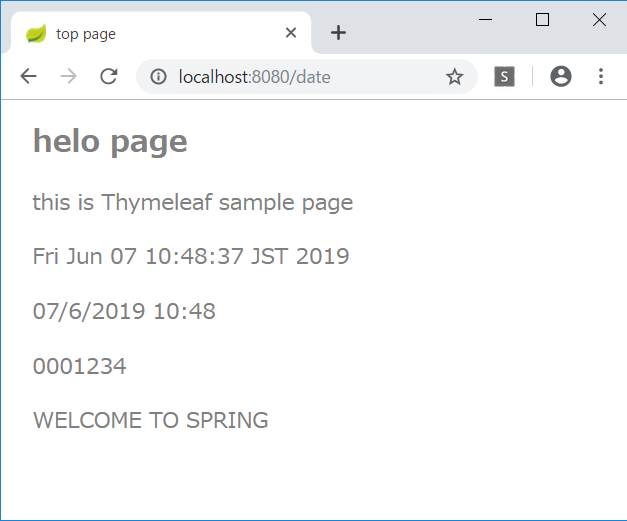
	@RequestMapping("/date")
	public String date() {
		return "index";
	}

index.html に1行追加する。

<h1>helo page</h1>
<p class="msg">this is Thymeleaf sample page</p>
<p class="msg" th:text="${msg}"></p>
<p th:text="${new java.util.Date().toString()}"></p>

ユーティリティオブジェクト

Thymeleafにはユーティリティオブジェクトが用意されているので、使ってみる。
index.html に以下の内容を追加する。

<p th:text="${#dates.format(new java.util.Date(), 'dd/MMM/yyyy HH:mm')}"></p>
<p th:text="${#numbers.formatInteger(1234, 7)}"></p>
<p th:text="${#strings.toUpperCase('Welcome to Spring')}"></p>

パラメータへのアクセス

index.html にさらに追加する。

<p th:text="'from parameter... id=' + ${param.id[0]}"></p>
<p th:text="'name=' + ${param.name[0]}"></p>

URLにパラメータを追加すると、その値が表示される。

http://localhost:8080/date?id=12345&name=taro

選択オブジェクトへの変数式

既存のコードが長くなってきたので、新しくコントローラを作成する。

ObjectController.java

package jp.abc;

import org.springframework.stereotype.Controller;
import org.springframework.web.bind.annotation.RequestMapping;
import org.springframework.web.servlet.ModelAndView;

@Controller
public class ObjectController {
	@RequestMapping("/obj")
	public ModelAndView index(ModelAndView mav) {
		mav.setViewName("obj");
		mav.addObject("msg", "current data");
		DataObject obj = new DataObject(123, "hanako", "hanako@flower");
		mav.addObject("obj", obj);
		return mav;
	}
}

HTMLも新規作成する。

obj.html

<!DOCTYPE html>
<html xmlns:th="http://www.thymeleaf.org">
<head>
<meta charset="UTF-8">
<title>選択オブジェクト</title>
<style type="text/css">
h1 {
  font-size: 18pt;
  font-weight: bold;
  color: gray;
}
body {
  font-size: 13pt;
  color: gray;
  margin: 5px 25px;
}
tr {
  margin: 5x;
}
th {
  padding: 5px;
  color: white;
  background: darkgray;
}
td {
  padding: 5px;
  color: black;
  background: #f0f0f0;
}
</style>
</head>
<body>
<h1>選択オブジェクトの変数式</h1>
<p th:text="${msg}"></p>
<table th:object="${obj}">
  <tr><th>ID</th><td th:text="*{id}"></td></tr>
  <tr><th>NAME</th><td th:text="*{name}"></td></tr>
  <tr><th>MAIL</th><td th:text="*{value}"></td></tr>
</table>

</body>
</html>

リテラル置換

obj.html に以下のコードを追加する。

<div th:object="${obj}">
  <p th:text="|my name is *{name}. mail address is *{value}.|">message.</p>
</div>

HTMLコードの出力

ObjectController に以下のコードを追加する。

	public ModelAndView index(ModelAndView mav) {
		mav.setViewName("obj");
		mav.addObject("msg", "current data");
		DataObject obj = new DataObject(123, "hanako", "hanako@flower");
		mav.addObject("obj", obj);
		mav.addObject("code", "msg1<hr />msg2<br />msg3");
		return mav;
	}

obj.html に以下のコードを追加する。

<p th:text="${code}">message.</p>

条件式

IndexControllerの date() メソッドを以下のように書き換える。

	@RequestMapping("/date")
	public ModelAndView date(
			@RequestParam("id")int id,
			ModelAndView mav) {
		mav.setViewName("index");
		mav.addObject("id", id);
		mav.addObject("check", id % 2 == 0);
		mav.addObject("trueVal", "Even number!");
		mav.addObject("falseVal", "Odd number..");
		return mav;
	}

index.html に以下のコードを追加する。

<p th:text="${id} + ' is ' + (${check} ? ${trueVal} : ${falseVal})"></p>

6月4日

ModelAndViewクラスの利用

ModelAndViewクラスは、データとビューに関する情報をまとめて管理できる。

package jp.abc;

import org.springframework.stereotype.Controller;
import org.springframework.ui.Model;
import org.springframework.web.bind.annotation.PathVariable;
import org.springframework.web.bind.annotation.RequestMapping;
import org.springframework.web.servlet.ModelAndView;

@Controller
public class IndexController {

	@RequestMapping("/index/{num}")
	public String index(@PathVariable int num, Model model) {
		int res = 0;
		for (int i = 1; i <= num; i++) {
			res += i;
		}
		model.addAttribute("msg", "total: " + res);
		return "index";
	}

	@RequestMapping("/mav/{num}")
	public ModelAndView mav(@PathVariable int num, ModelAndView mav) {
		int res = 0;
		for (int i = 1; i <= num; i++) {
			res += i;
		}
		mav.addObject("msg", "total: " + res);
		mav.setViewName("index");
		return mav;
	}
}

フォームを利用したデータの送信

コントローラは、HTTPメソッドのGETとPOSTを区別して受信するように、それぞれにメソッドを用意する。

package jp.abc;

import org.springframework.stereotype.Controller;
import org.springframework.ui.Model;
import org.springframework.web.bind.annotation.PathVariable;
import org.springframework.web.bind.annotation.RequestMapping;
import org.springframework.web.bind.annotation.RequestMethod;
import org.springframework.web.bind.annotation.RequestParam;
import org.springframework.web.servlet.ModelAndView;

@Controller
public class IndexController {

	@RequestMapping("/index/{num}")
	public String index(@PathVariable int num, Model model) {
		int res = 0;
		for (int i = 1; i <= num; i++) {
			res += i;
		}
		model.addAttribute("msg", "total: " + res);
		return "index";
	}

	@RequestMapping("/mav/{num}")
	public ModelAndView mav(@PathVariable int num, ModelAndView mav) {
		int res = 0;
		for (int i = 1; i <= num; i++) {
			res += i;
		}
		mav.addObject("msg", "total: " + res);
		mav.setViewName("index");
		return mav;
	}

	@RequestMapping(value="/form1", method=RequestMethod.GET)
	public ModelAndView form1(ModelAndView mav) {
		mav.setViewName("form1");
		mav.addObject("msg", "お名前を書いて送信してください");
		return mav;
	}

	@RequestMapping(value="/form1", method=RequestMethod.POST)
	public ModelAndView send(@RequestParam("text1")String str,
			ModelAndView mav) {
		mav.addObject("msg", "こんにちは" + str + "さん!");
		mav.addObject("value", str);
		mav.setViewName("form1");
		return mav;
	}
}

HTMLを用意する。
テキストではindex.htmlを修正して再利用しているが、ここでは新たにform1.htmlを作成する。

<!DOCTYPE html>
<html xmlns:th="http://www.thymeleaf.org">
<head>
<meta charset="UTF-8">
<title>top page</title>
<style type="text/css">
	h1 {
		font-size: 18pt;
		font-weight: bold;
		color: gray;
	}
	body {
		font-size: 13pt;
		color: gray;
		margin: 5px 25px;
	}
</style>
</head>
<body>

<h1>form1</h1>

<p th:text="${msg}">please wait...</p>
<form method="post" action="/form1" >
	<input type="text" name="text1" th:value="${value}" />
	<input type="submit" value="Click" />
</form>

</body>
</html>

診断メーカーっぽくしてみよう!

HTMLに入力フィールドを追加する。

<!DOCTYPE html>
<html xmlns:th="http://www.thymeleaf.org">
<head>
<meta charset="UTF-8">
<title>top page</title>
<style type="text/css">
	h1 {
		font-size: 18pt;
		font-weight: bold;
		color: gray;
	}
	body {
		font-size: 13pt;
		color: gray;
		margin: 5px 25px;
	}
</style>
</head>
<body>

<h1>form1</h1>

<p th:text="${msg}">please wait...</p>
<p th:text="${result}">please wait...</p>
<form method="post" action="/form1" >
	<input type="text" name="text1" th:value="${value}" /><br />
	<input type="text" name="text2" th:value="${text2}" /><br />
	<input type="submit" value="Click" />
</form>

</body>
</html>

受け取ったテキストで診断して結果を0~100%の範囲で返す。

	@RequestMapping(value="/form1", method=RequestMethod.POST)
	public ModelAndView send(@RequestParam("text1")String str,
			@RequestParam("text2")String str2,
			ModelAndView mav) {
		int p = (str + str2).hashCode() % 101;
		p = Math.abs(p);
		mav.addObject("msg", "こんにちは" + str + "さん!");
		mav.addObject("result", str + "さんの"
							+ str2 + "度は、" + p +"%です。");
		mav.addObject("value", str);
		mav.addObject("text2", str2);
		mav.setViewName("form1");
		return mav;
	}

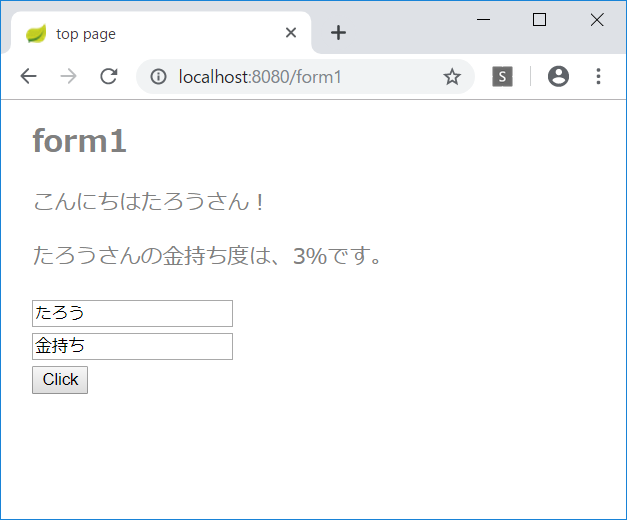
診断の結果を表示できるようになった。

そのほかのフォームコントロール

コントローラが長くなってきたので、新しくコントローラを作成する。

FormController

package jp.abc;

import org.springframework.stereotype.Controller;
import org.springframework.web.bind.annotation.RequestMapping;
import org.springframework.web.bind.annotation.RequestMethod;
import org.springframework.web.bind.annotation.RequestParam;
import org.springframework.web.servlet.ModelAndView;

@Controller
public class FormController {
	@RequestMapping(value="/form2", method=RequestMethod.GET)
	public ModelAndView form2(ModelAndView mav) {
		mav.setViewName("form2");
		return mav;
	}

	@RequestMapping(value="form2", method=RequestMethod.POST)
	public ModelAndView send(
			@RequestParam(value="check1", required=false)boolean check1,
			@RequestParam(value="radio1", required=false)String radio1,
			@RequestParam(value="select1", required=false)String select1,
			@RequestParam(value="select2", required=false)String[] select2,
			ModelAndView mav) {
		String res = "";
		try {
			res= "check1:" + check1 +
					" radio: " + radio1 +
					" select: " + select1 +
					"\nselect2:";
		} catch (NullPointerException e) {}
		try {
			res += select2[0];
			for (int i = 1; i < select2.length; i++) {
				res += ", " + select2[i];
			}
		} catch (NullPointerException e) {
			res += "null";
		}
		mav.addObject("msg", res);
		mav.setViewName("form2");
		return mav;
	}

}

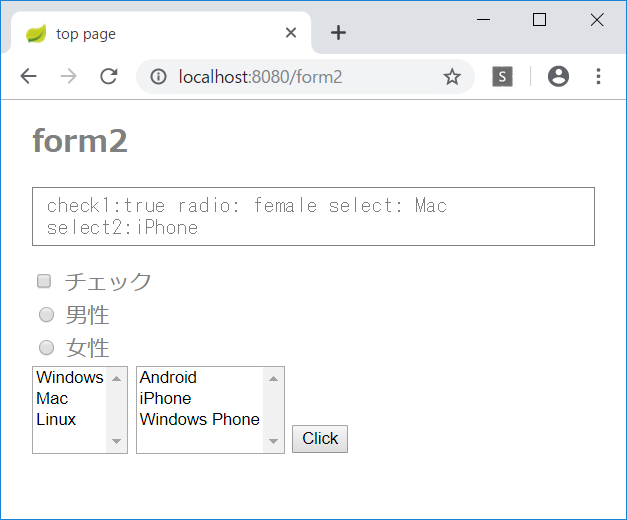
form2.html を新規作成する。

<!DOCTYPE html>
<html xmlns:th="http://www.thymeleaf.org">
<head>
<meta charset="UTF-8">
<title>top page</title>
<style type="text/css">
	h1 {
		font-size: 18pt;
		font-weight: bold;
		color: gray;
	}
	body {
		font-size: 13pt;
		color: gray;
		margin: 5px 25px;
	}
	pre {
		font-size: 13pt;
		color: gray;
		padding: 5px 10px;
		border: 1px solid gray;
	}
</style>
</head>
<body>

<h1>form2</h1>

<pre th:text="${msg}">please wait...</pre>
<form method="post" action="/form2" >
	<div>
	<input type="checkbox" id="check1" name="check1" />
	<label for="check1">チェック</label>
	</div>
	<div>
	<input type="radio" id="radioA" name="radio1" value="male" />
	<label for="radioA">男性</label>
	</div>
	<div>
	<input type="radio" id="radioB" name="radio1" value="female" />
	<label for="radioB">女性</label>
	</div>
	<select id="select1" name="select1" size="4">
		<option value="Windows">Windows</option>
		<option value="Mac">Mac</option>
		<option value="Linux">Linux</option>
	</select>
	<select id="select2" name="select2" size="4" multiple="multiple">
		<option value="Android">Android</option>
		<option value="iPhone">iPhone</option>
		<option value="winfone">Windows Phone</option>
	</select>
	<input type="submit" value="Click" />
</form>

</body>
</html>

5月31日

URLの構成

http://hostname:port/contextpath/path?querystring

Spring Boot で Hello World

HeloController.java

package jp.abc;

import org.springframework.web.bind.annotation.RequestMapping;
import org.springframework.web.bind.annotation.RestController;

@RestController
public class HeloController {

	@RequestMapping("/")
	public String index() {
		return "Hello Spring Boot World!";
	}
}

@RequestMappingアノテーションでいろいろなURLパスに対応する機能を追加できる。

HeloController.java に以下のメソッドを追加する。
http://localhost:8080/hello

	@RequestMapping("/hello")
	public String hello() {
		return "Hello World! - path = /hello";
	}

パス変数

URLパスに変数を含めることができる。
@PathVariable アノテーションを使用する。

http://localhost:8080/sum/123

	@RequestMapping("/sum/{num}")
	public String sum(@PathVariable int num) {
		int res = 0;
		for (int i = 1; i <= num; i++) {
			res += i;
		}
		return "total: " + res;
	}

JSONを出力する

テキストではDataObjectクラスを同一ソース内に書いているが好ましくないので、別のクラスとして新規作成する。

package jp.abc;

public class DataObject {
	private int id;
	private String name;
	private String value;

	public DataObject(int id, String name, String value) {
		this.id = id;
		this.name = name;
		this.value = value;
	}

	public int getId() {
		return id;
	}
	public void setId(int id) {
		this.id = id;
	}
	public String getName() {
		return name;
	}
	public void setName(String name) {
		this.name = name;
	}
	public String getValue() {
		return value;
	}
	public void setValue(String value) {
		this.value = value;
	}
}

HeloControllerに以下のフィールドとメソッドを追加する。

	String[] names = { "tsuyano", "hanako", "taro",
					   "sachiko", "ichiro" };
	String[] mails = {
			"syoda@tsuyano.com",
			"hanako@flower",
			"taro@yamada",
			"sachiko@happy",
			"ichiro@baseball"
	};

	@RequestMapping("/users/{id}")
	public DataObject users(@PathVariable int id) {
		return new DataObject(id, names[id], mails[id]);
	}

Thymeleafを使ってWebサイトを作る

Thymeleafを使うには、ライブラリを追加する必要がある。
pom.xml に設定を追加する。

<?xml version="1.0" encoding="UTF-8"?>
<project xmlns="http://maven.apache.org/POM/4.0.0" xmlns:xsi="http://www.w3.org/2001/XMLSchema-instance"
	xsi:schemaLocation="http://maven.apache.org/POM/4.0.0 http://maven.apache.org/xsd/maven-4.0.0.xsd">
	<modelVersion>4.0.0</modelVersion>
	<parent>
		<groupId>org.springframework.boot</groupId>
		<artifactId>spring-boot-starter-parent</artifactId>
		<version>2.1.4.RELEASE</version>
		<relativePath/> <!-- lookup parent from repository -->
	</parent>
	<groupId>jp.abc</groupId>
	<artifactId>MyBootApp</artifactId>
	<version>0.0.1-SNAPSHOT</version>
	<name>MyBootApp</name>
	<description>Demo project for Spring Boot</description>

	<properties>
		<java.version>1.8</java.version>
	</properties>

	<dependencies>
		<dependency>
			<groupId>org.springframework.boot</groupId>
			<artifactId>spring-boot-starter-web</artifactId>
		</dependency>

		<dependency>
			<groupId>org.springframework.boot</groupId>
			<artifactId>spring-boot-starter-test</artifactId>
			<scope>test</scope>
		</dependency>

		<dependency>
			<groupId>org.springframework.boot</groupId>
			<artifactId>spring-boot-starter-thymeleaf</artifactId>
		</dependency>
	</dependencies>

	<build>
		<plugins>
			<plugin>
				<groupId>org.springframework.boot</groupId>
				<artifactId>spring-boot-maven-plugin</artifactId>
			</plugin>
		</plugins>
	</build>

</project>

[Maven]-[プロジェクトの更新]と[実行]-[maven install]を実施する。

テキストではHeloControllerを修正しているが、ここでは新規クラスを作成する。

IndexController.java

package jp.abc;

import org.springframework.stereotype.Controller;
import org.springframework.web.bind.annotation.RequestMapping;

@Controller
public class IndexController {

	@RequestMapping("/index")
	public String index() {
		return "index";
	}
}

HTMLファイルを作成する。
src/main/resources/templates を右クリックして新規作成でHTMLファイルを作成する。

<!DOCTYPE html>
<html xmlns:th="http://www.thymeleaf.org">
<head>
<meta charset="UTF-8">
<title>top page</title>
<style type="text/css">
	h1 {
		font-size: 18pt;
		font-weight: bold;
		color: gray;
	}
	body {
		font-size: 13pt;
		color: gray;
		margin: 5px 25px;
	}
</style>
</head>
<body>
<h1>helo page</h1>
<p class="msg">this is Thymeleaf sample page</p>
</body>
</html>

テンプレートに値を表示する

<body>

<h1>helo page</h1>
<p class="msg">this is Thymeleaf sample page</p>
<p class="msg" th:text="${msg}"></p>

</body>

コントローラでは引数にModelを追加する。
Modelを通してテンプレートに値を渡す。

package jp.abc;

import org.springframework.stereotype.Controller;
import org.springframework.ui.Model;
import org.springframework.web.bind.annotation.PathVariable;
import org.springframework.web.bind.annotation.RequestMapping;

@Controller
public class IndexController {

	@RequestMapping("/index/{num}")
	public String index(@PathVariable int num, Model model) {
		int res = 0;
		for (int i = 1; i <= num; i++) {
			res += i;
		}
		model.addAttribute("msg", "total: " + res);
		return "index";
	}
}

5月28日

SpringBoot2によるWebアプリケーション開発

Eclipse に STS プラグインをインストールする。(テキストp.14)

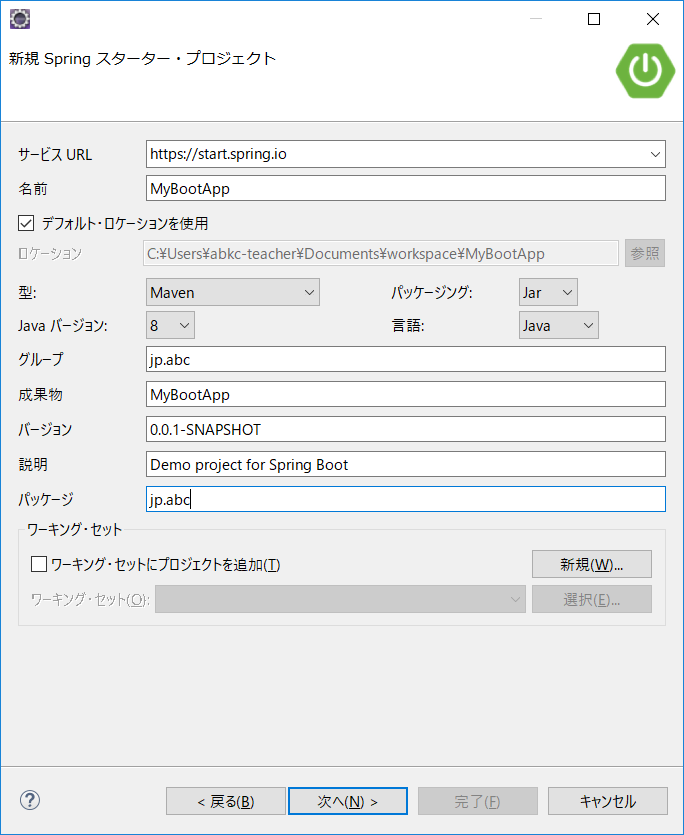
新規プロジェクトを作成する。
プロジェクトの種類は「Spring スタータープロジェクト」(テキストp.98)

「次へ」をクリックするとツリーが表示されるので、[Web]-[Web]にチェックする。
「次へ」をクリックし「完了」をクリック。
使用しているライブラリなどのダウンロードが始まる。

ダウンロードが完了したら、プロジェクトを右クリックして[Maven]-[プロジェクトの更新]を選択する。
処理が完了したら、プロジェクトを右クリックして[実行]-[Maven install]を選択する。
不足しているライブラリなどがあればダウンロードしてくれる。

コンソールに「BUILD SUCCESS」が出ればOK。
「BUILD FAILURE」が出たら[実行]-[Maven install]をやり直す。

Webアプリケーションの実行

プロジェクトを右クリックして[実行]-[SpringBootアプリケーション]を選択する。
Webアプリケーションが起動するメッセージがコンソールに表示される。

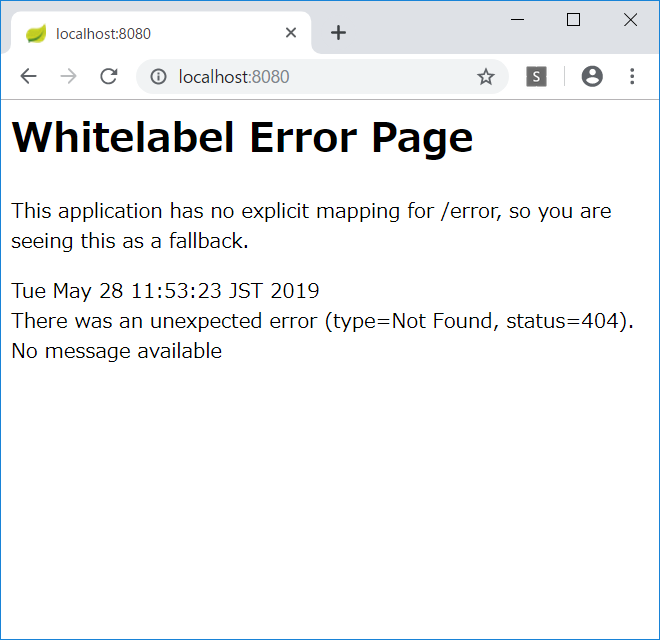
ブラウザで「http://localhost:8080/」にアクセスするとエラーページが表示される。

5月24日

前回は、以下のテストを書いたところで終了した。。

	@Test
	void ジュースを3種類管理できる() {
		VendingMachine vm = new VendingMachine();
		vm.put(100);
		boolean b = vm.canBuy("水");
		assertThat(b, is(true));
		b = vm.canBuy("コーラ");
		assertThat(b, is(false));
		b = vm.canBuy("レッドブル");
		assertThat(b, is(false));
	}

テストを実行してエラーになることを確認する。
水を購入できるか問い合わせたところでエラーが発生。

canBuy() メソッドでは、引数で名前をもらっているけど参照していなかった。
ジュースの名前を見て購入可能かを判断するように修正する。

	public boolean canBuy(String name) {
		if (juices.size() == 0) return false;
		return total >= getJuicePrice(name);
	}

getJuicePrice()にも引数を追加して、ジュースの名前を見て価格を返すようにする。

	public int getJuicePrice(String name) {
		if (name.equals("水")) return 100;
		if (name.equals("コーラ")) return 120;
		return 200;
	}

3種類のジュースを購入できるようにしたいので、水を購入するテストを追加する。

	@Test
	void ジュースを3種類購入する() {
		VendingMachine vm = new VendingMachine();
		vm.put(1000);
		Juice j = vm.buy("水");
		assertThat(j.getName(), is("水"));
	}

これまで、1種類(コーラ)しか売ってなかった自動販売機を複数に対応させるのは割と大変。
まずは3種類のジュースを在庫できるようにする。
Mapを追加して、ジュースの名前で在庫を取得できるようにする。

public class VendingMachine {
	private int total;
	private int sales;
	private Map<String, List<Juice>> map = new HashMap<>();
	private List<Juice> juices;

	public VendingMachine() {
		total = 0;
		juices = new ArrayList<>();
		map.put("水", juices);
		for (int i = 0; i < 5; i++) {
			juices.add(new Juice("水", 100));
		}
		juices = new ArrayList<>();
		map.put("コーラ", juices);
		for (int i = 0; i < 5; i++) {
			juices.add(new Juice("コーラ", 120));
		}
		juices = new ArrayList<>();
		map.put("レッドブル", juices);
		for (int i = 0; i < 5; i++) {
			juices.add(new Juice("レッドブル", 200));
		}
	}

テストを実行すると、これまで動いていたテスト「ジュースを購入する()」などでエラーになる。
これはジュースの名前を見ていないのが原因。
ジュースの名前を見て、Mapから在庫を取得するように変更する。

	public Juice buy(String name) {
		if (!canBuy(name)) return null;
		juices = map.get(name);
		Juice j = juices.remove(0);
		total -= j.getPrice();
		sales += j.getPrice();
		return j;
	}

3種類のジュースを購入するテストを書く。

	@Test
	void ジュースを3種類購入する() {
		VendingMachine vm = new VendingMachine();
		vm.put(1000);
		Juice j = vm.buy("水");
		assertThat(j.getName(), is("水"));
		int total = vm.getTotal();
		assertThat(total, is(900));
		int stock = vm.getJuiceStock("水");
		assertThat(stock, is(4));

		j = vm.buy("レッドブル");
		assertThat(j.getName(), is("レッドブル"));
		total = vm.getTotal();
		assertThat(total, is(700));

		j = vm.buy("コーラ");
		assertThat(j.getName(), is("コーラ"));
		total = vm.getTotal();
		assertThat(total, is(580));

		int sales = vm.getSales();
		assertThat(sales, is(420));
	}

getJuiceStock() に引数を追加して、ジュースの名前を指定して在庫を取得できるようにする。

	public int getJuiceStock(String name) {
		return juices.size();
	}

ジュースの名前を見てないのに、getJuiceStock() のテストをパスしているので、怪しい実装を修正するためにテストを追加する。

	@Test
	void ジュースを3種類購入する() {
		VendingMachine vm = new VendingMachine();
		vm.put(1000);
		Juice j = vm.buy("水");
		assertThat(j.getName(), is("水"));
		int total = vm.getTotal();
		assertThat(total, is(900));
		int stock = vm.getJuiceStock("水");
		assertThat(stock, is(4));
		stock = vm.getJuiceStock("レッドブル");
		assertThat(stock, is(5));

		j = vm.buy("レッドブル");
		assertThat(j.getName(), is("レッドブル"));
		total = vm.getTotal();
		assertThat(total, is(700));

		j = vm.buy("コーラ");
		assertThat(j.getName(), is("コーラ"));
		total = vm.getTotal();
		assertThat(total, is(580));

		int sales = vm.getSales();
		assertThat(sales, is(420));
	}

このテストで、レッドブルの在庫数を正しく返せてないことがわかる。
getJuiceStocck() をきちんと実装しなおす。

	public int getJuiceStock(String name) {
		juices = map.get(name);
		return juices.size();
	}

購入可能なドリンクのリストを知りたい!
テストを作成する。

	@Test
	void 購入可能なドリンクのリスト() {
		VendingMachine vm = new VendingMachine();
		Juice[] list = vm.getBuyableJuices();
		assertThat(list.length, is(0));
	}

コンパイルエラーを解消する。
VendingMachine に以下のメソッドを追加する。

	public Juice[] getBuyableJuices() {
		return null;
	}

テストには失敗するので、テストにパスするように実装する。
とりあえず fake で。

	public Juice[] getBuyableJuices() {
		return new Juice[0];
	}

テストを追加する。
100円を投入すると水を購入できる。

	@Test
	void 購入可能なドリンクのリスト() {
		VendingMachine vm = new VendingMachine();
		Juice[] list = vm.getBuyableJuices();
		assertThat(list.length, is(0));
		vm.put(100);
		list = vm.getBuyableJuices();
		assertThat(list.length, is(1));
		assertThat(list[0].getName(), is("水"));
	}

100円を追加投入すると3種類のドリンクを購入できる。

	@Test
	void 購入可能なドリンクのリスト() {
		VendingMachine vm = new VendingMachine();
		Juice[] list = vm.getBuyableJuices();
		assertThat(list.length, is(0));
		vm.put(100);
		list = vm.getBuyableJuices();
		assertThat(list.length, is(1));
		assertThat(list[0].getName(), is("水"));
		vm.put(100);
		list = vm.getBuyableJuices();
		assertThat(list.length, is(3));
	}

手抜きの実装でテストをパスさせる。

	public Juice[] getBuyableJuices() {
		if (total >= 200) {
			Juice[] list = {
					new Juice("水", 100),
					new Juice("コーラ", 120),
					new Juice("レッドブル", 200)
				};
			return list;
		}
		if (total >= 120) {
			Juice[] list = {
					new Juice("水", 100),
					new Juice("コーラ", 120),
				};
			return list;

		}
		if (total >= 100) {
			Juice[] list = {
					new Juice("水", 100),
				};
			return list;

		}
		return new Juice[0];
	}

在庫がなくなったらリストに出ないテストを作成する。
合計700円を投入して水を5個買うと、200円残る。
水の在庫がなくなったので、リストはコーラとレッドブルの2個だけになる。

	@Test
	void 購入可能なドリンクのリスト() {
		VendingMachine vm = new VendingMachine();
		Juice[] list = vm.getBuyableJuices();
		assertThat(list.length, is(0));
		vm.put(100);
		list = vm.getBuyableJuices();
		assertThat(list.length, is(1));
		assertThat(list[0].getName(), is("水"));
		vm.put(100);
		list = vm.getBuyableJuices();
		assertThat(list.length, is(3));
		vm.put(500);
		for (int i = 0; i < 5; i++) {
			Juice j = vm.buy("水");
			assertThat(j.getName(), is("水"));
		}
		list = vm.getBuyableJuices();
		assertThat(list.length, is(2));
	}
	public Juice[] getBuyableJuices() {
		Collection<List<Juice>> c = map.values();
		List<Juice> list = new ArrayList<>();
		for (List<Juice> l : c) {
			if (l.size() == 0) continue;
			Juice j = l.get(0);
			if (j.getPrice() > total) continue;
			list.add(j);
		}
		return list.toArray(new Juice[0]);
	}

5月21日

前回は返金するテストを作ったところで終わっていたので、まずはテストを実行してみる。
すると、返金するテストでエラーになるので、そこから作業を再開すればいいことがわかる。

返金を実装する。

	public int refund() {
		int refund = total;
		total = 0;
		return refund;
	}

扱えないお金

テストを書く。

	@Test
	void 投入できないお金() {
		VendingMachine vm = new VendingMachine();
		vm.put(1);
		int total = vm.getTotal();
		assertThat(total, is(0));
		vm.put(5);
		total = vm.getTotal();
		assertThat(total, is(0));
		vm.put(20);
		total = vm.getTotal();
		assertThat(total, is(0));
		vm.put(5000);
		total = vm.getTotal();
		assertThat(total, is(0));
	}

10円・50円・100円・500円・1000円だけ受け付けるようにすればよい。

	public void put(int i) {
		// 10円・50円・100円・500円・1000円だけ受け付ける
		if (i == 10 ||
			i == 50 ||
			i == 100 ||
			i == 500 ||
			i == 1000) {
			total += i;
		}
	}

ジュースの管理

テストを書く。

	@Test
	void ジュースを格納できる() {
		VendingMachine vm = new VendingMachine();
		String name = vm.getJuiceName();
		assertThat(name, is("コーラ"));
		int price = vm.getJuicePrice();
		assertThat(price, is(120));
		int stock = vm.getJuiceStock();
		assertThat(stock, is(5));
	}

このテストに関しては、fakeだけでテストにパスできる。

	public String getJuiceName() {
		return "コーラ";
	}

	public int getJuicePrice() {
		return 120;
	}

	public int getJuiceStock() {
		return 5;
	}

ジュースを購入する。

テストを書く。

	@Test
	void ジュースを購入する() {
		VendingMachine vm = new VendingMachine();
		boolean b = vm.canBuy("コーラ");
		assertThat(b, is(false));
		vm.put(500);
		b = vm.canBuy("コーラ");
		assertThat(b, is(true));
	}

テストにパスするように自動販売機を実装する。

	public boolean canBuy(String name) {
		return total >= getJuicePrice();
	}

購入できるようにする。

	@Test
	void ジュースを購入する() {
		VendingMachine vm = new VendingMachine();
		boolean b = vm.canBuy("コーラ");
		assertThat(b, is(false));
		vm.put(500);
		b = vm.canBuy("コーラ");
		assertThat(b, is(true));
		Juice juice = vm.buy("コーラ");

Juiceがないので新規にクラスを作成する。

package jp.abc;

public class Juice {
	private String name;
	private int price;
	public String getName() {
		return name;
	}
	public void setName(String name) {
		this.name = name;
	}
	public int getPrice() {
		return price;
	}
	public void setPrice(int price) {
		this.price = price;
	}
}

Juiceを作ったので、テストの続きを作成する。

	@Test
	void ジュースを購入する() {
		VendingMachine vm = new VendingMachine();
		boolean b = vm.canBuy("コーラ");
		assertThat(b, is(false));
		vm.put(500);
		b = vm.canBuy("コーラ");
		assertThat(b, is(true));
		Juice juice = vm.buy("コーラ");
		assertThat(juice.getName(), is("コーラ"));
	}

テストではジュースの名前だけチェックしているのでfakeで実装しておく。

	public Juice buy(String name) {
		Juice j = new Juice();
		j.setName("コーラ");
		return j;
	}

ジュースを購入すると在庫を減らさないといけないのでテストを追加する。

	@Test
	void ジュースを購入する() {
		VendingMachine vm = new VendingMachine();
		boolean b = vm.canBuy("コーラ");
		assertThat(b, is(false));
		vm.put(500);
		b = vm.canBuy("コーラ");
		assertThat(b, is(true));
		Juice juice = vm.buy("コーラ");
		assertThat(juice.getName(), is("コーラ"));
		int stock = vm.getJuiceStock();
		assertThat(stock, is(4));
	}

テストをパスするようにまじめに実装する。
Juiceクラスには、引数付きコンストラクタが欲しいので追加しておく。
既存のコードで引数なしのコンストラクタを使っているので引数なしのコンストラクタも定義しておく。

	public Juice(String name, int price) {
		this.name = name;
		this.price = price;
	}
	public Juice() {
		this("", 0);
	}
package jp.abc;

import java.util.ArrayList;
import java.util.List;

public class VendingMachine {
	private int total;
	private List<Juice> juices = new ArrayList<>();

	public VendingMachine() {
		total = 0;
		for (int i = 0; i < 5; i++) {
			juices.add(new Juice("コーラ", 120));
		}
	}

	public void put(int i) {
		// 10円・50円・100円・500円・1000円だけ受け付ける
		if (i == 10 ||
			i == 50 ||
			i == 100 ||
			i == 500 ||
			i == 1000) {
			total += i;
		}
	}

	public int getTotal() {
		return total;
	}

	public int refund() {
		int refund = total;
		total = 0;
		return refund;
	}

	public String getJuiceName() {
		return "コーラ";
	}

	public int getJuicePrice() {
		return 120;
	}

	public int getJuiceStock() {
		return juices.size();
	}

	public boolean canBuy(String name) {
		return total >= getJuicePrice();
	}

	public Juice buy(String name) {
		Juice j = juices.remove(0);
		return j;
	}
}

ジュースを購入すると合計金額が減るのをテストに追加する。

	@Test
	void ジュースを購入する() {
		VendingMachine vm = new VendingMachine();
		boolean b = vm.canBuy("コーラ");
		assertThat(b, is(false));
		vm.put(500);
		b = vm.canBuy("コーラ");
		assertThat(b, is(true));
		Juice juice = vm.buy("コーラ");
		assertThat(juice.getName(), is("コーラ"));
		int stock = vm.getJuiceStock();
		assertThat(stock, is(4));
		int total = vm.getTotal();
		assertThat(total, is(380));
	}

テストにパスするように実装する。

	public Juice buy(String name) {
		Juice j = juices.remove(0);
		total -= j.getPrice();
		return j;
	}

投入金額が足りないときはジュースを購入できないテストを追加する。

	@Test
	void 金額不足でジュースを購入できない() {
		VendingMachine vm = new VendingMachine();
		Juice j = vm.buy("コーラ");
		assertThat(j, is(nullValue()));
	}

テストにパスするように実装する。

	public Juice buy(String name) {
		if (!canBuy(name)) return null;
		Juice j = juices.remove(0);
		total -= j.getPrice();
		return j;
	}

在庫がないときはジュースを購入できないテストを追加する。

	@Test
	void 在庫がないのでジュースを購入できない() {
		VendingMachine vm = new VendingMachine();
		vm.put(1000);
		for (int i = 0; i < 5; i++) {
			Juice j = vm.buy("コーラ");
			assertThat(j.getName(), is("コーラ"));
		}
		Juice j = vm.buy("コーラ");
		assertThat(j, is(nullValue()));
	}

テストにパスするように実装する。
在庫が0なので購入できない。

	public boolean canBuy(String name) {
		if (juices.size() == 0) return false;
		return total >= getJuicePrice();
	}

売上金額を取得できるようにする。
まずはテストを作成する。

	@Test
	void 現在の売上金額を取得できる() {
		VendingMachine vm = new VendingMachine();
		int sales = vm.getSales();
		assertThat(sales, is(0));
		vm.put(1000);
		Juice j = vm.buy("コーラ");
		sales = vm.getSales();
		assertThat(sales, is(120));
	}

テストにパスするように実装する。

package jp.abc;

import java.util.ArrayList;
import java.util.List;

public class VendingMachine {
	private int total;
	private int sales;
	private List<Juice> juices = new ArrayList<>();

	public VendingMachine() {
		total = 0;
		for (int i = 0; i < 5; i++) {
			juices.add(new Juice("コーラ", 120));
		}
	}

	public void put(int i) {
		// 10円・50円・100円・500円・1000円だけ受け付ける
		if (i == 10 ||
			i == 50 ||
			i == 100 ||
			i == 500 ||
			i == 1000) {
			total += i;
		}
	}

	public int getTotal() {
		return total;
	}

	public int refund() {
		int refund = total;
		total = 0;
		return refund;
	}

	public String getJuiceName() {
		return "コーラ";
	}

	public int getJuicePrice() {
		return 120;
	}

	public int getJuiceStock() {
		return juices.size();
	}

	public boolean canBuy(String name) {
		if (juices.size() == 0) return false;
		return total >= getJuicePrice();
	}

	public Juice buy(String name) {
		if (!canBuy(name)) return null;
		Juice j = juices.remove(0);
		total -= j.getPrice();
		sales += j.getPrice();
		return j;
	}

	public int getSales() {
		return sales;
	}
}

返金操作で釣銭を返すテストを作成する。

	@Test
	void 返金操作で釣銭を返す() {
		VendingMachine vm = new VendingMachine();
		vm.put(1000);
		Juice j = vm.buy("コーラ");
		int refund = vm.refund();
		assertThat(refund, is(880));
	}

何も実装しないでもテストにパスした!!!!!!!

機能拡張する。

ジュースを3種類管理できるようにする。

	@Test
	void ジュースを3種類管理できる() {
		VendingMachine vm = new VendingMachine();
		vm.put(100);
		boolean b = vm.canBuy("水");
		assertThat(b, is(true));
		b = vm.canBuy("コーラ");
		assertThat(b, is(false));
		b = vm.canBuy("レッドブル");
		assertThat(b, is(false));
	}

5月17日

gitを使用したソースコードのバージョン管理

プロジェクトを右クリックして[チーム]-[プロジェクトの共用] を選択する。
GitとSVNがあるのでGitを選択して「次へ」をクリックする。
リポジトリーの「作成」をクリック。
適当なフォルダを選択して「完了」をクリック。

.gitignore ファイルを設定する。

.gitignoreファイルには、Gitの管理対象外にするファイルを記述する。
例えばクラスファイルなどはコンパイルで自動生成されるので、管理不要である。

.gitignoreファイルを表示するには、パッケージエクスプローラの右にある「▽」をクリックする。
メニューで「フィルター」を選択して「.*リソース」のチェックを外す。

/bin/
/.settings
.project
.classpath
*.class
*.jar

Gitにファイルを登録することを「コミット」と呼ぶ。

自動販売機の実装に戻る。

前回、テストがエラーになる状態で終わっていたので、テストを実行してみる。
10円を投入して投入金額の合計を取得すると0円なのでエラーになっている。

package jp.abc;

import static org.hamcrest.CoreMatchers.*;
import static org.junit.Assert.*;

import org.junit.jupiter.api.Test;

class VendingMachineTest {

	@Test
	void お金を投入する() {
		VendingMachine vm = new VendingMachine();
		vm.put(10);
		int total = vm.getTotal();
		assertThat(total, is(10));
	}

}

fakeでgetTotal()で10を返すようにすればテストにパスする。

package jp.abc;

public class VendingMachine {

	public void put(int i) {

	}

	public int getTotal() {
		return 10;
	}

}

テストを追加する。

package jp.abc;

import static org.hamcrest.CoreMatchers.*;
import static org.junit.Assert.*;

import org.junit.jupiter.api.Test;

class VendingMachineTest {

	@Test
	void お金を投入する() {
		VendingMachine vm = new VendingMachine();
		vm.put(10);
		int total = vm.getTotal();
		assertThat(total, is(10));
		vm.put(100);
		total = vm.getTotal();
		assertThat(total, is(110));
	}

}

テストにパスするように実装を行う。

テストにパスしたタイミングでソースコードをGitに登録する。
登録することをコミットという。
プロジェクトを右クリックし、[チーム]-[コミット]を選択する。
コミットメッセージを入力する。
登録したいファイルがステージングにあることを確認して[コミット]をクリックする。

以下、投入できないお金と返金を追加したテスト。

package jp.abc;

import static org.hamcrest.CoreMatchers.*;
import static org.junit.Assert.*;

import org.junit.jupiter.api.Test;

class VendingMachineTest {

	@Test
	void お金を投入する() {
		VendingMachine vm = new VendingMachine();
		vm.put(10);
		int total = vm.getTotal();
		assertThat(total, is(10));
		vm.put(100);
		total = vm.getTotal();
		assertThat(total, is(110));
	}

	@Test
	void 投入できないお金() {
		VendingMachine vm = new VendingMachine();
		vm.put(1);
		int total = vm.getTotal();
		assertThat(total, is(0));
	}

	@Test
	void 返金する() {
		VendingMachine vm = new VendingMachine();
		vm.put(1000);
		int total = vm.getTotal();
		assertThat(total, is(1000));
		int refund = vm.refund();
		total = vm.getTotal();
		assertThat(total, is(0));
		assertThat(refund, is(1000));
	}
}

1円を投入されても合計金額に加算しない。

package jp.abc;

public class VendingMachine {
	private int total;

	public VendingMachine() {
		total = 0;
	}

	public void put(int i) {
		if (i == 1) return;
		total += i;
	}

	public int getTotal() {
		return total;
	}

	public int refund() {
		return 0;
	}

}

5月14日

テストを実行するとMusicPlayerTestの「プレイリストに音楽を追加する()」でエラーになるので、そこから作業を再開すればよい。

MusicPlayer#addMusicToPlayList()を実装する。

	public void addMusicToPlayList(Music m, PlayList p) {
		p.addMusic(m);
	}

PlayList#addMucis()のコンパイルエラーを解消し、テストにパスさせる。

package jp.abc;

import java.util.ArrayList;
import java.util.List;

public class PlayList {
	private String name;
	private List<Music> musics = new ArrayList<>();

	public String getName() {
		return name;
	}

	public void setName(String name) {
		this.name = name;
	}

	public int countMusic() {
		return musics.size();
	}

	public void addMusic(Music m) {
		musics.add(m);
	}

}

音楽を再生する機能を追加する。
ここでは、再生した順番にMusicを格納したListを返す playAll() を作る。

	@Test
	void 音楽を再生する() {
		MusicPlayer mp = new MusicPlayer();
		mp.addMusic("Lemon", "米津玄師");
		mp.addMusic("flamingo", "米津玄師");
		List<Music> list = mp.playAll();
		assertThat(list.get(0).getTitle(), is("Lemon"));
		assertThat(list.get(1).getTitle(), is("flamingo"));
	}

MusicPlayer#playAll() を再生する。

	public List<Music> playAll() {
		return null;
	}

テストを実行すると、NullPointerExceptionが発生する。

MusicPlayer#playAll() を修正する。

	public List<Music> playAll() {
		return musics;
	}

シャッフル再生機能を追加する。
テストを作成する。
ランダムな結果に対するテストを書くのは難しいので、テストでは曲数だけ確認してコンソール出力を目視で確認する。

	@Test
	void 音楽をシャッフル再生する() {
		MusicPlayer mp = new MusicPlayer();
		mp.addMusic("Lemon", "米津玄師");
		mp.addMusic("flamingo", "米津玄師");
		mp.addMusic("紅蓮華", "LISA");
		mp.addMusic("日本のコメは世界一", "打首獄門同好会");
		mp.addMusic("Killing me", "SIM");
		List<Music> list = mp.playShuffle();
		assertThat(list.size(), is(5));
	}

MusicPayer#playShuffle() を作成する。
とりあえず、シャッフルしないままのmusicsを返しておく。
Musicを追加した順番通りにコンソール出力される。

	public List<Music> playShuffle() {
		// shuffle
		List<Music> list = musics;
		for (Music m : list) {
			System.out.println(m);
		}
		return musics;
	}

Music#toString()を追加してタイトルとアーティストを表示するようにしておく。

	@Override
	public String toString() {
		return "Music [title=" + title + ", artist=" + artist + "]";
	}

シャッフル再生でもとの曲順が変わるのはまずいので、テストを追加しておく。

	@Test
	void 音楽をシャッフル再生する() {
		MusicPlayer mp = new MusicPlayer();
		mp.addMusic("Lemon", "米津玄師");
		mp.addMusic("flamingo", "米津玄師");
		mp.addMusic("紅蓮華", "LISA");
		mp.addMusic("日本のコメは世界一", "打首獄門同好会");
		mp.addMusic("Killing me", "SIM");
		List<Music> list = mp.playShuffle();
		assertThat(list.size(), is(5));
		// シャッフル後も曲順が変わってないことを確認
		assertThat(list.get(0).getTitle(), is("Lemon"));
		assertThat(list.get(1).getTitle(), is("flamingo"));
	}

MusicPlayerを実装する。

	public List<Music> playShuffle() {
		// shuffle
		List<Music> list = new ArrayList<>(musics);
		Collections.shuffle(list);
		for (Music m : list) {
			System.out.println(m);
		}
		return musics;
	}

別の例題に挑戦してみよう!

TDD Boot Camp 大阪 2.0/課題( #tddbc )

飲み物自動販売機を作ってみる。

新規プロジェクト: vendingmachine
新規クラス: jp.abc.VendingMachine
新規JUnitテストケース: jp.abc.VendingMachineTest

package jp.abc;

import static org.junit.jupiter.api.Assertions.*;

import org.junit.jupiter.api.Test;

class VendingMachineTest {

	@Test
	void test() {
		fail("まだ実装されていません");
	}

}

まずは次の課題を実装してみる。
・お金を投入できるようにする。
・投入した金額の総計を取得できる。

package jp.abc;

import static org.hamcrest.CoreMatchers.*;
import static org.junit.Assert.*;

import org.junit.jupiter.api.Test;

class VendingMachineTest {

	@Test
	void お金を投入する() {
		VendingMachine vm = new VendingMachine();
		vm.put(10);
		int total = vm.getTotal();
		assertThat(total, is(10));
	}

}

Eclipseにメソッドを生成してもらってコンパイルエラーを解消する。

package jp.abc;

public class VendingMachine {

	public void put(int i) {
		// TODO 自動生成されたメソッド・スタブ

	}

	public int getTotal() {
		// TODO 自動生成されたメソッド・スタブ
		return 0;
	}

}

Gitでソースコードのバージョン管理する

プロジェクトを右クリックして[チーム]-[プロジェクトの共用] を選択する。
GitとSVNがあるのでGitを選択して「次へ」をクリックする。
リポジトリーの「作成」をクリック。
適当なフォルダを選択して「完了」をクリック。